
This short article describes how to stop the Ink Level Detection function in your CANON large format printer so that you can utilize refilled cartridges.
Disabling Ink Level Detection on the PRO-520, PRO-540, PRO-540S, PRO-560, PRO-560S, PRO-2000, PRO-4000, PRO-4000S, PRO-6000, PRO-6000S, TX-2000, TX-2100, TX-3000, TX-3100, TX-4000, TX-4100, TX-5300, TX-5310, TX-5400, TX-5410, TZ-30000, TZ-5300 printers:
- When you install a cartridge that was previously identified as “empty,” the statement “The above ink tank may be an ink tank that ran out of genuine Canon ink or a counterfeit Canon ink tank.” will appear on your printer’s touchscreen.
- Navigate through the displays, completing the activities outlined in the messages displayed on the touchscreen.
- When the printer asks you to disable detection, press and hold the Stop button for at least 5 seconds before releasing it.
- On that color, ink level detection will now be disabled. It will be your obligation to periodically check the cartridges and refill them well before they are empty.
On the TA-20, TA-30, TM-200, TM-205, TM-300, TM-305, TA-5200, TA-5300, TM-5200, TM-5205, TM-5300, TM-5305 printers, disable Ink Level Detection:
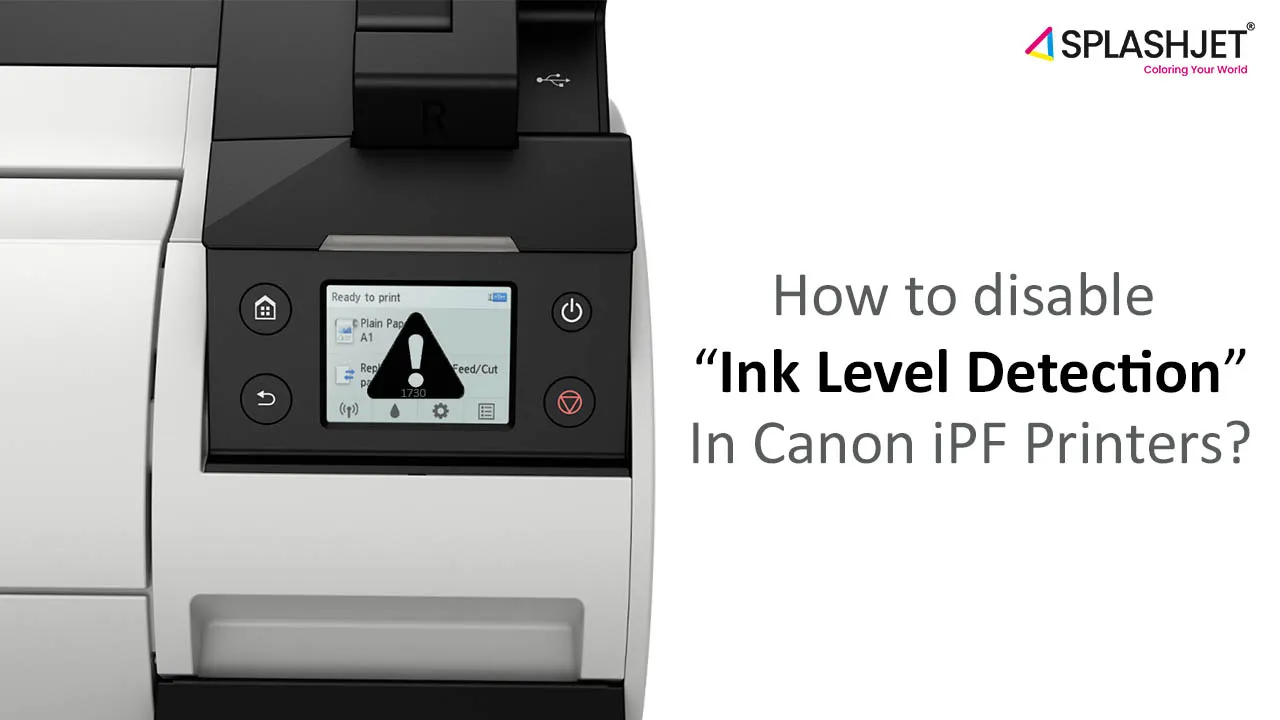
- When you install a cartridge that was previously categorized as “empty,” the support code “1730” will appear on your printer’s screen.
- You’ll need to disable ink level detection on that color if you want to keep printing. Hold the red Stop/Cancel button down for at least 5 seconds before releasing it.
- On that color, ink level detection will now be disabled. It will be your obligation to periodically check the cartridges and refill them well before they are empty.
How to disable Ink Level Detection on all other imagePROGRAF iPF printer models:
- When you install a cartridge that has been identified as empty, you’ll see a notice saying that the ink level can’t be recognized. To continue, press the right arrow.
- Select Information with the down arrow, then press the OK button.
- A message of information is displayed. To continue, press the right arrow twice.
- Select Yes with the down arrow, then press the OK button.
- A message of confirmation appears. To continue, press the right arrow twice.
- Select Yes with the down arrow, then press the OK button.
- A last message of confirmation appears. To continue, press the right arrow.
- Select Yes with the down arrow, then press the OK button.
- On that color, ink level detection will now be disabled. It will be your obligation to periodically check the cartridges and refill them well before they are empty.