
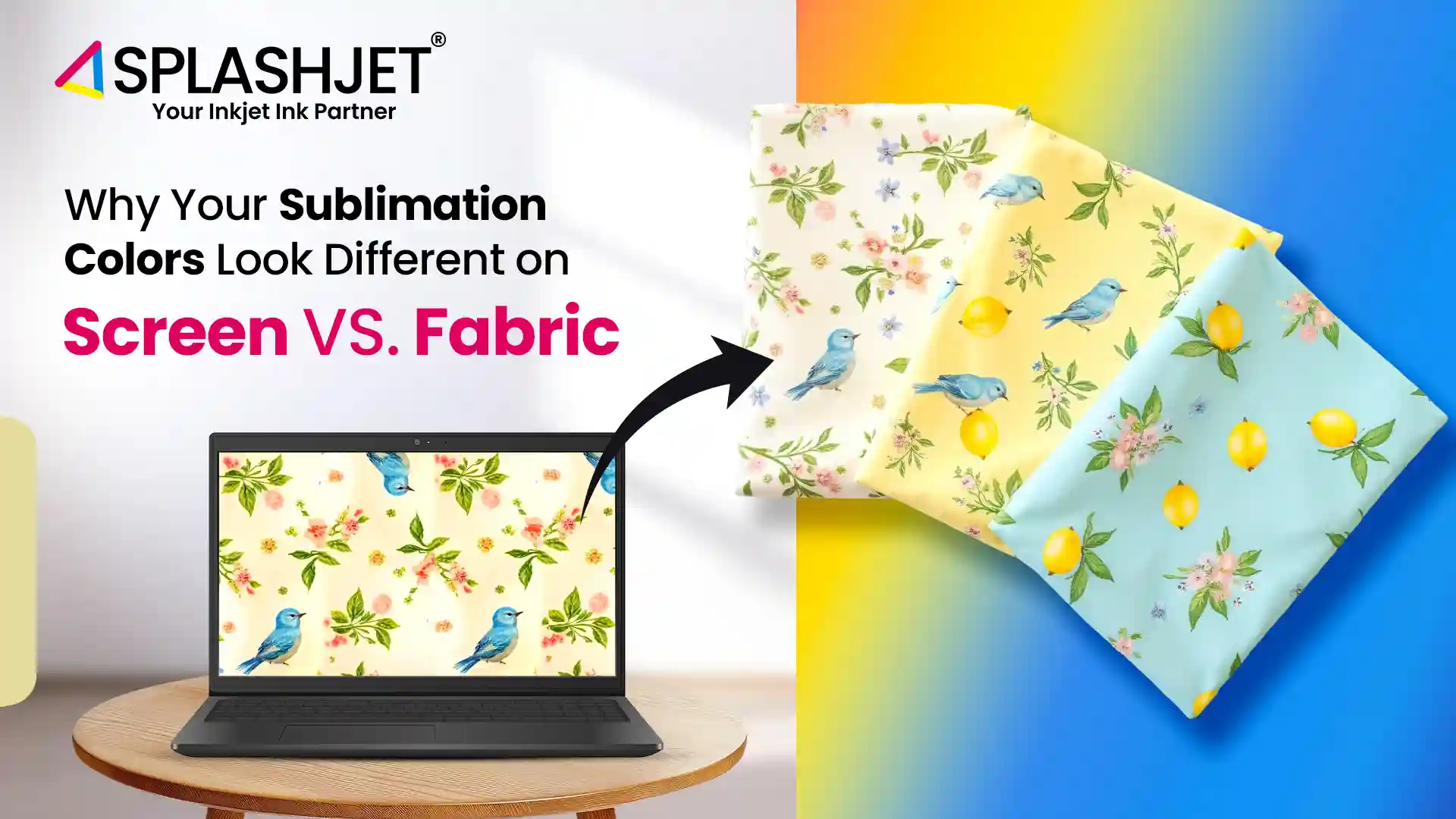
Getting perfect color results in sublimation printing is not as simple as it looks. Right from the process design selection, to choosing the right fabric, and then finally hitting ‘Print’, the colors that come out often feel off. Not what you saw on screen. Sound familiar?
This guide breaks down the six common reasons why the colors of your sublimation printing look different on Screen Vs fabric and shows you how to get closer to the results you want.
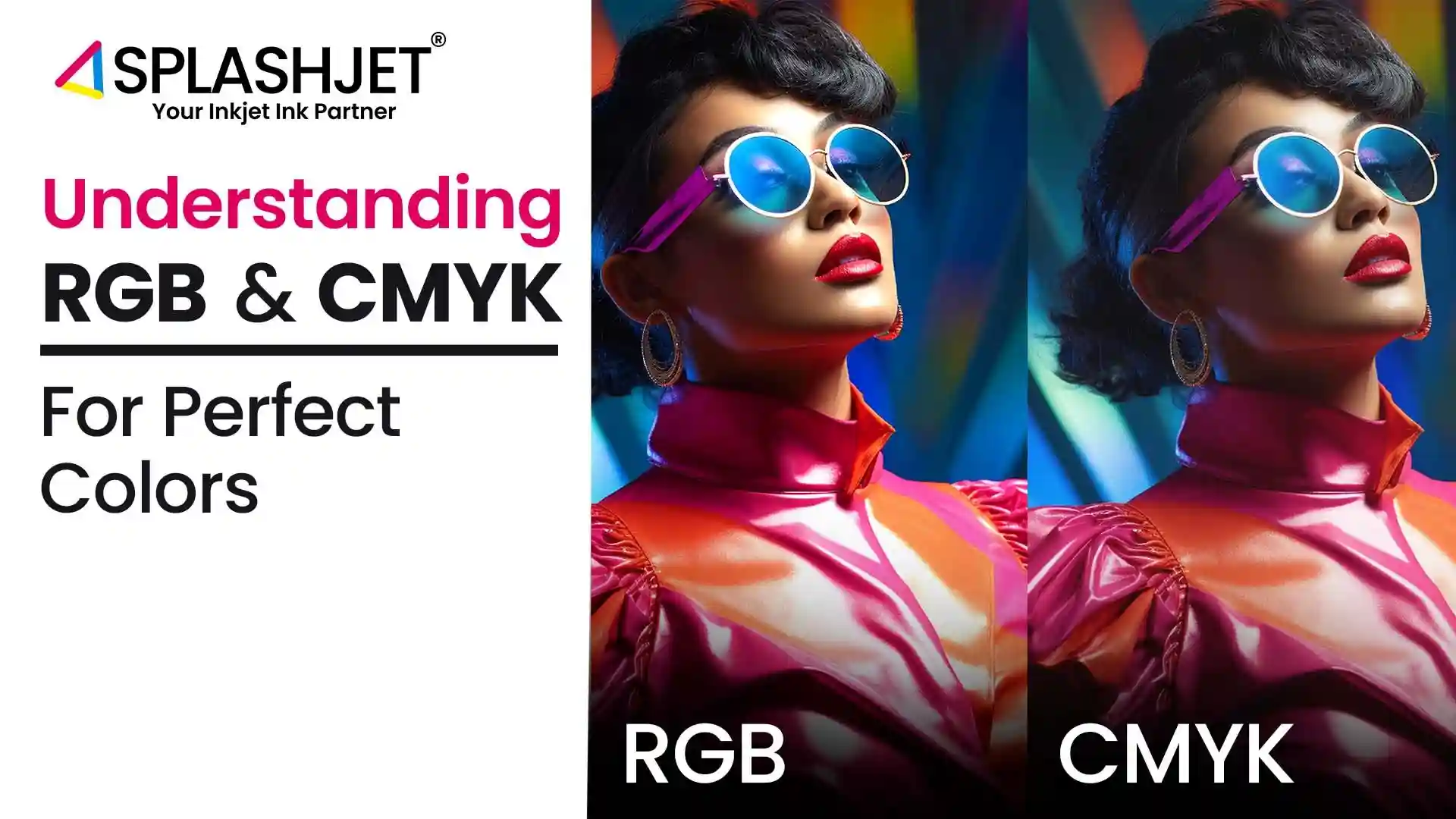
Understand the RGB vs. CMYK Color Models
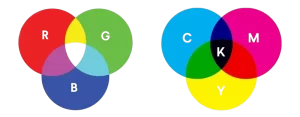
RGB (Red, Green, Blue) model is an additive color system based on light, which is used by the screen to display color. Printers, on the other hand, use CMYK (Cyan, Magenta, Yellow, Black), a subtractive color system based on ink. That shift from light-based to pigment-based color is a key reason why what you see on screen rarely matches what prints on fabric.
What to do:
- Design in CMYK mode starts by designing in CMYK mode in your graphic software (like Adobe Illustrator or Photoshop), so you can see what you see on screen
- Avoid highly saturated neon-like RGB colors, as they can’t be reproduced accurately in CMYK.
For more information, read – RGB and CMYK – Understanding Differences for Perfect Printing
Sublimation Colors Look Different? – Here Are the Tips To Get Perfect Results
1. Monitor Calibration for Accurate Previews

Most monitors are on the default settings for user comfort brightness and saturation, which can give you a false perspective on the colors that will be printed. An uncalibrated monitor can show colors that look vibrant onscreen but appear dull or inaccurate when printed.
| Type of Monitor | Typical Contrast Ratio | Accuracy | Result in Print Proofing |
|---|---|---|---|
| Regular Monito | ~1000:1 or higher | Not color-accurate | Misleading color representation |
| Calibrated Monitor | ~200:1 (optimized for proofing) | Color-accurate | Reliable soft proofing results |
What You Should Do:
- Use a hardware calibration tool (e.g., SpyderX, X-Rite i1Display) or your OS’s built-in calibration utility to adjust brightness, gamma, and color temperature.
- Set your monitor to a D50 lighting standard (5000K), which simulates daylight and is ideal for evaluating print colors.
- Work in a neutral lighting environment — no colored walls or direct sunlight.
2. Adjusting Colors in Design Software
Even with a calibrated monitor and the right ICC profile, some manual color adjustments in designing software can enhance your accuracy. These tools let you fine-tune specific color properties so your designs print better in the final output.
What to do:
- Adjust Hue & Saturation to control vibrancy.
Use Brightness & Contrast to enhance clarity and detail. - Apply Curves or Levels to balance shadows, midtones, and highlights
3. Printing a Color Reference Chart
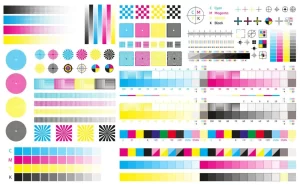
A color reference chart is one of your best tools, as it shows how a wide range of shades and tones from your design software appear when printed using your specific printer, ink, and sublimation paper.
What to do:
- Download or create a sublimation-specific color chart in your design software.
- Print it using your regular sublimation setup on the same fabric or material you typically use.
Compare this physical chart with your digital version to see which shades shift—and by how much.
4. The Role of ICC Profiles
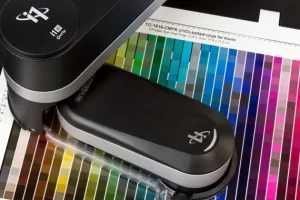
An ICC profile (International Color Consortium) acts as a translator between your monitor, printer, ink, and paper. Without the correct profile, your printer may misinterpret the color data.
What to do:
- Always use the ICC profile specifically made for your printer, ink, and sublimation paper combination. Using a generic one may not get you true color behavior.
- Install the profile in your design software and print settings to ensure accurate color mapping.
5. Optimizing Heat Press Settings
The heat transfer process also impacts color output. Incorrect temperature, pressure, or pressing time can alter the final look. Best practices:
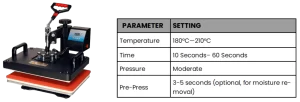
Also, ensure even heat distribution across the press surface for uniform results.
For more, refer to Why Sublimation Ink Colors Look Faded After Printing and How To Fix It?
6. Impact of Fabric Type on Colors
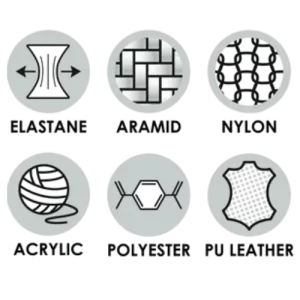
The type of fabric you use can drastically affect how vibrant or muted your sublimation colors appear. The higher the polyester content, the brighter and sharper the print. When printing on blended fabrics (like polyester-cotton), the ink doesn’t fully transfer to cotton, resulting in duller, washed-out colors.
What to do:
- For optimal results, always choose fabrics with at least 85–100% polyester.
- Avoid low-polyester blends for designs that require vibrancy and detail.
Conclusion:
We walked you through the detailed steps and reasons why you might be able to print what you see on the screen. By understanding the technical differences and optimizing your workflow, you can close the gap between screen and fabric.